What you need
An iPhone running iOS 17 or later, and Voice notes & Smart plan installed. You do not need an account — open the app once after install so the widget can read today’s plan, then return to the Home Screen.
If the widget is missing
Update iOS if you are below 17, then reinstall the app if the widget still does not appear in the gallery. Android does not include a Home Screen widget in this version.
Steps
The same Add Widget flow as any other iPhone widget.
- Long-press the Home Screen
Press an empty area until the icons start to jiggle, then tap Edit in the corner.
- Choose Add Widget
The widget gallery opens. This is the same place you add Weather, Notes or Calendar widgets.
- Search for Voice notes
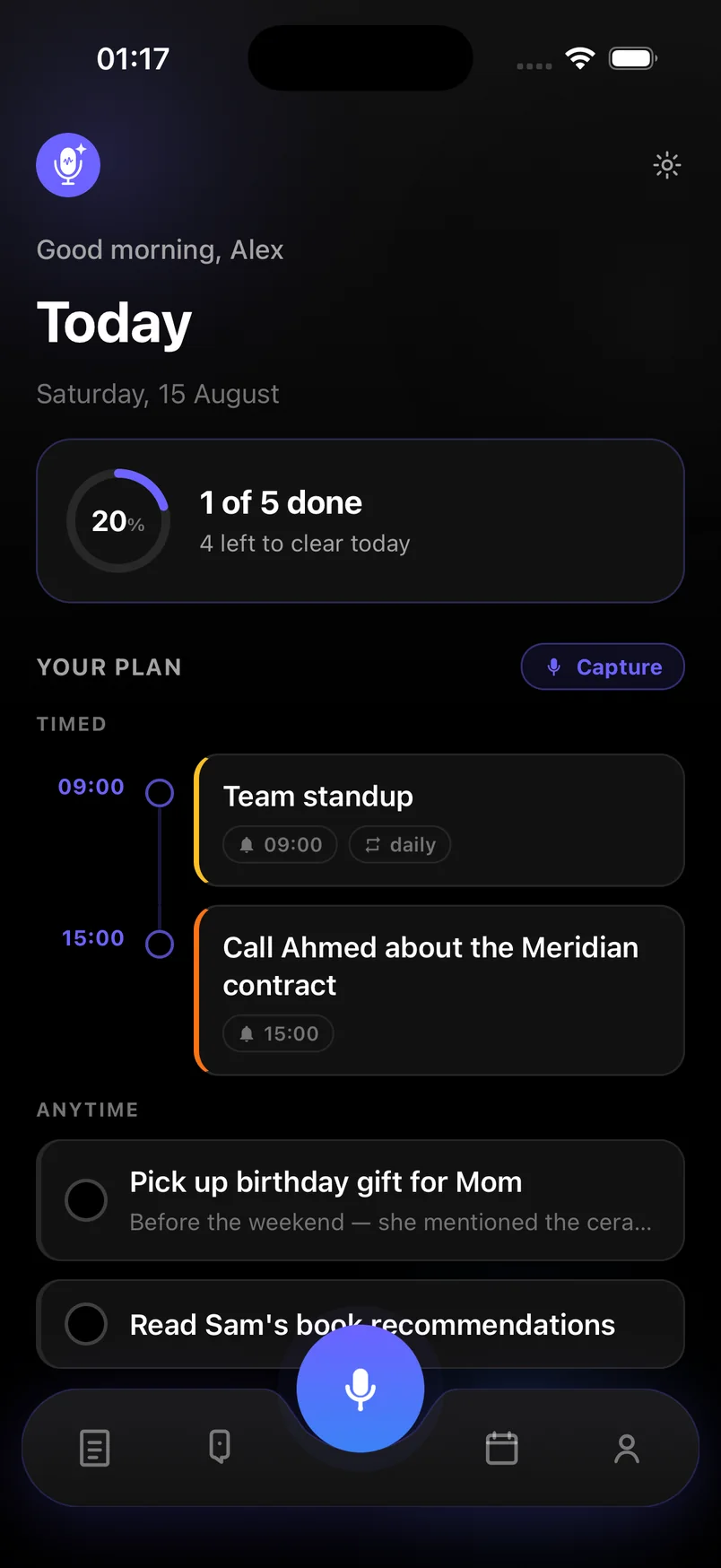
Type “Voice notes” and select the widget. Pick a size: compact for one-tap capture, larger if you want more of today’s plan visible.
- Place it and tap Done
Drag the widget where you want it. Tap Done to leave jiggle mode.
- Tap to capture
One tap on the capture control starts a recording. When you stop, AI transcribes it and files tasks, reminders, notes and ideas as usual.
Frequently asked questions
Does the widget work on iPad?
The app is iPhone-first. If the widget appears on iPad it will capture the same way; the gallery listing is built for iPhone Home Screen sizes.
Can I add more than one widget?
Yes. iOS lets you place multiple sizes. A small one by the dock for capture and a larger one on another page for the plan is a common setup.